The Disk Diagram Pane is the main Disk Space Analyzer window which displays the current disk directory structure.
It has a title bar, two fixed toolbars and a row of disk selection tabs at the bottom of the window.
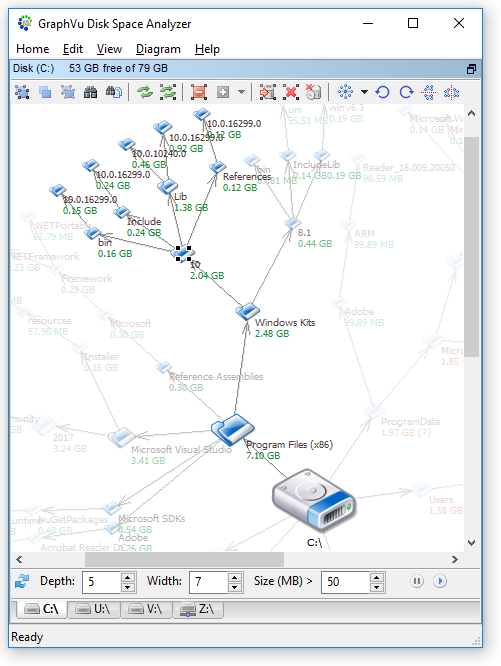
Disk Diagram
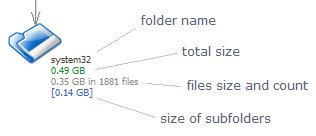 Disk directory structure is presented
in a form of a directed graph. It does not normally show all
the folders, but only the largest ones and may also
include the folders that
you manually add to the diagram (see Expand command)
and the folders that
match certain search criteria
(see Find & Select).
Disk directory structure is presented
in a form of a directed graph. It does not normally show all
the folders, but only the largest ones and may also
include the folders that
you manually add to the diagram (see Expand command)
and the folders that
match certain search criteria
(see Find & Select).
You can control what is shown in the diagram by using the bottom toolbar controls.
Select an element by clicking on it. Multiple folders can be selected by dragging a selection rectangle around a group of icons.
If you already have a selection, you can add or remove an element to or from it by holding the Ctrl key and clicking on the icon you want to select or unselect.
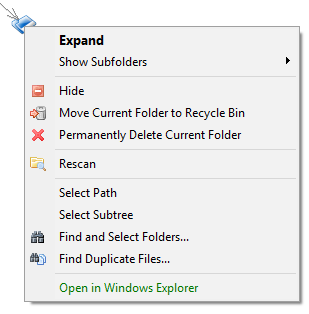
Right clicking on an icon brings a context menu up. Note that some commands are only available from the context menu: Select Path, Select Subtree. Also Find & Select command (when executed from the context menu rather then from the top toolbar top toolbar or the Edit Menu) gives user an additional option of searching in the current folder's subtree. Folders can be arranged manually by moving folder icons with the mouse. Manual graph layouts are not saved and will be lost when you exit the application or when you click Refresh button in the bottom toolbar. |
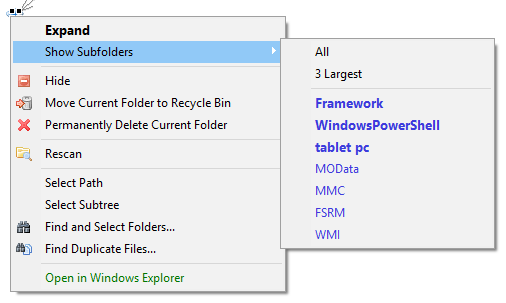
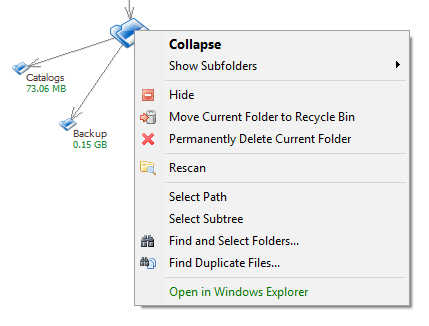
Use Collapse command to collapse a subtree (remove subfolders of the current folder from the diagram). |
The Title Bar shows the disk letter, label and size:

The Top Toolbar has the following buttons:
Select All - select all folders in the current disk diagram.
Unselect All - unselect all folders in the current disk diagram.
Invert Selection - unselect selected and select unselected folders.
Find & Select - find and select folders and files that meet certain criteria, such as name, modification date and size.
Rescan Disk - rescan all folders on disk
Rescan Selected - rescan selected folders
Hide Selected - hide selected folders.
Unhide - shows the list of hidden folders and allows to unhide them.
Move Selected to Recycle Bin - move selected folders to the Recycle Bin.
Delete Selected Permanently - permanently delete selected folders.
Empty Recycle Bin - permanently delete items in the Recycle Bin. Operation only affects current disk.
Layout - arrange diagram elements using hierarchical, radial or force-directed layout.
Rotate Anticlockwise - rotate diagram anticlockwise.
Rotate Clockwise - rotate diagram clockwise.
Flip Vertically - flip diagram vertically.
Flip Horizontally - flip diagram horizontally.
The Bottom Toolbar has the following controls:
Refresh button - refreshes current diagram.
- Depth of the tree - number of levels (starting from the root) shown in the diagram.
- Width of the tree - maximum number of immediate subfolders shown.
- Size (MB) - size in MBytes. Only folders with size larger than or equal to the specified size will be shown in the diagram.
Pause button - pause disk scan
Scan button - scan folders that are not up-to-date.
You can switch to another disk by choosing the corresponding disk selection tab. The system checks whether the disk requires a scan or not. It automatically starts scanning the disk if not all its folders are marked as up-to-date. See Scanning Folders for more details.
Disk selection tabs are located under the bottom toolbar:
