You can use Disk Space Analyzer to search for files and folders on your disks.
Search commands can be found in the Edit Menu,
in the context menus of the Disk Diagram Pane
and in the Disk Diagram Pane Top Toolbar
(note 
Find & Select Dialog
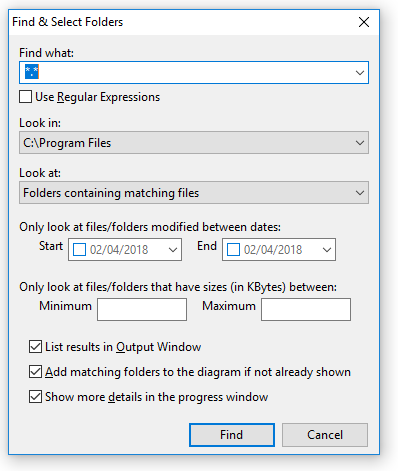
- Find what - enter the name of the file or folder you want to search for. Note that search is case insensitive. This field is mandatory.
- Use Regular Expressions checkbox. Specifies whether the Find what uses wildcards or regular expressions (for more information on regular expressions see wikipedia article Regular expression).
- Look in - specify where to look. The following options are available:
- All folders on the current disk
- Folders shown in the current diagram
- Current folder (only available from the context menu)
- Look at - specify whether you will be
looking for folders, files or both:
- Folders
- Files
- Files and folders
- Start and/or End dates. If specified, only folders/files modified between these dates will be included in the search results.
- Minimum and/or Maximum sizes in KBytes. If specified, only folders/files with matching sizes will be included in the search results.
- List results in Output Window checkbox. Specifies whether results will appear in the Output Window or not.
- Add matching folders to the diagram checkbox.
Specifies whether matching folders that aren't already shown
in the current disk diagram
will be added to the diagram or not.
Note: If you tick this checkbox, folders found by the search will be added to the diagram even if they don't satisfy the criteria specified by the spin-controls in the Disk Diagram Bottom Toolbar. To remove added folders use the Refresh button in the Bottom Toolbar. - Show more details in the progress window checkbox. Uncheck it if you want to speed the search up.
Note: please be careful when choosing search options. If your search is too broad and finds thousands of matching folders, then the results of the search may be discarded and you will be asked to narrow your search down. Also if you choose to look in All folders on the current disk then it is advisable to tick at least one of the following options: List results in Output Window or Add matching folders to the diagram.
Search Progress Dialog
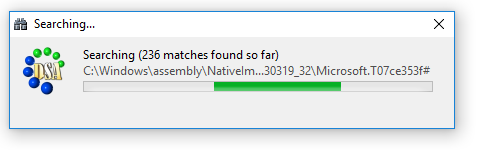
You can stop the running search before its completion at any time by closing the Search Progress Dialog. The analyzer will prompt you if there are any results and will offer to show partial results or to discard them.
Search Results
The results of a search can be viewed
- in a separate tab of the Output Window
- and in the Log.
They are also reflected
- in the Disk Diagram
- and in the Contents Pane.
Output Window
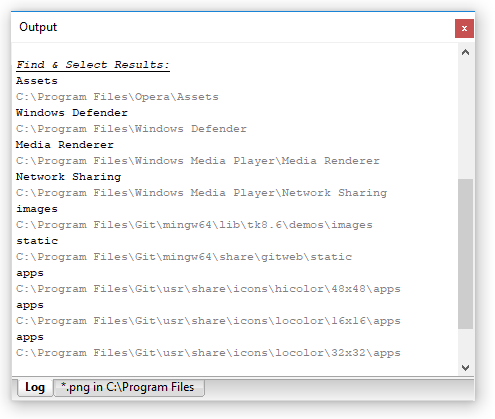
The search results appear in a separate tab:
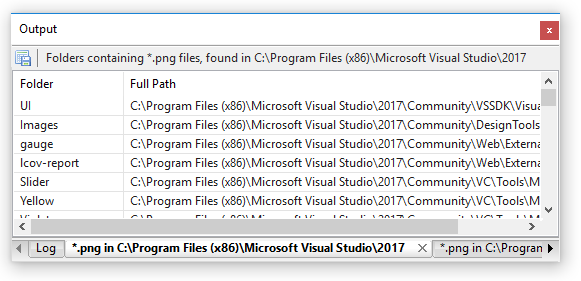
Use the List results in Output Window checkbox to output your search results to the Output window. By doing so you can be sure that even when you choose to look in All folders on the current disk and not to Add matching folders to the diagram, you will still be able to see all the matching folders listed in the Output window.
Log
The search results also output to the Log:
Disk Diagram
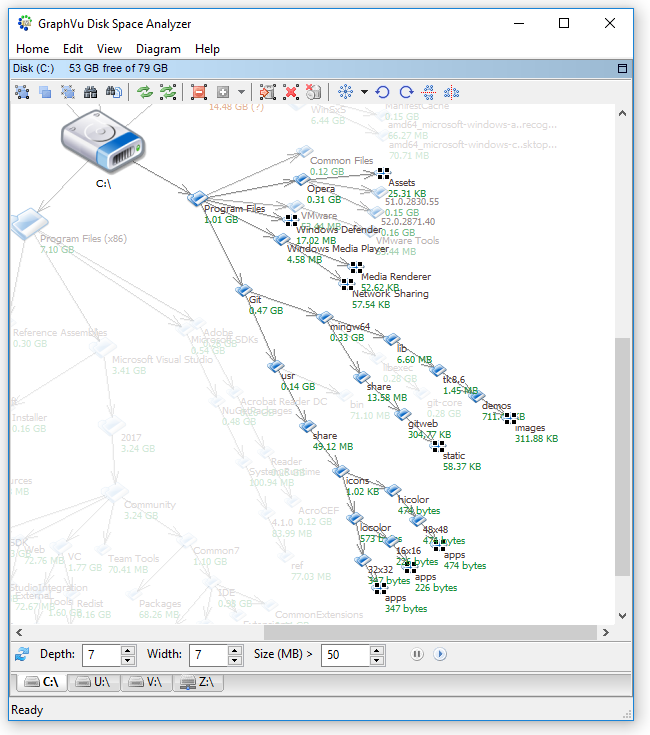
The matching folders or the folders that contain matching files
are added to the selection:
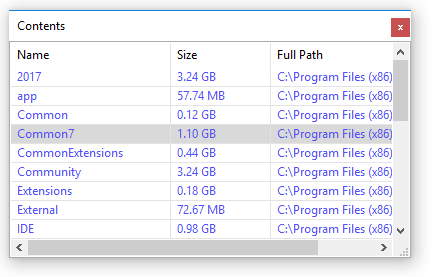
Contents Pane
The folders selected in the Disk Diagram (if there is more than one selected)
are also listed in the Contents Pane: