GraphVu Disk Space Analyzer scans all the folders on the disk in order to get information about directory structure and folder/file sizes.
The analyzer checks for changes every time you switch between disk diagrams (by pressing disk selection tabs) and initiates a scan if there are any folders that it thinks are not up-to-date.
The user can initiate a scan manually by pressing the Scan button

To force a rescan of the selected folders or a full disk rescan use the
Rescan Selected


You can also set Up-To-Date property manually to false (see Properties Pane) if you want a particular folder to be included in the next update scan.
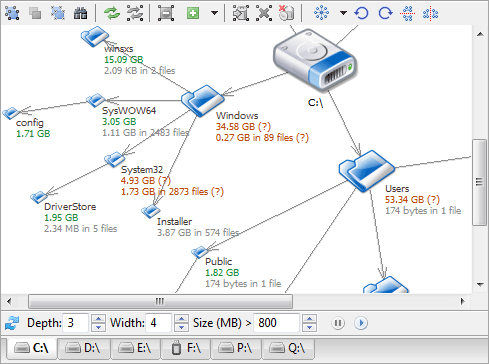
Not up-to-date folders have their sizes shown with the question mark:
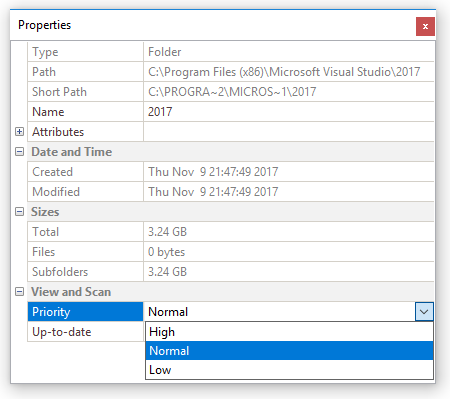
You can control the order in which the folders are scanned by setting folder scan priorities. Priority can be set to High, Normal or Low (see Properties Pane). By default each folder has normal scan priority.
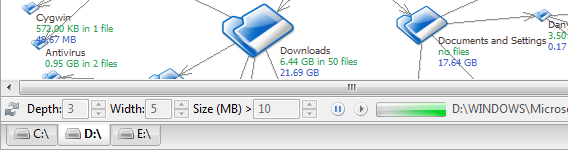
A running scan can be paused at any time by pressing
the Pause button

Note that while the scan is running some of the functions (Refresh button and spin-controls in the bottom toolbar, for example) are not available to the user :
Related Topics